Executive summary
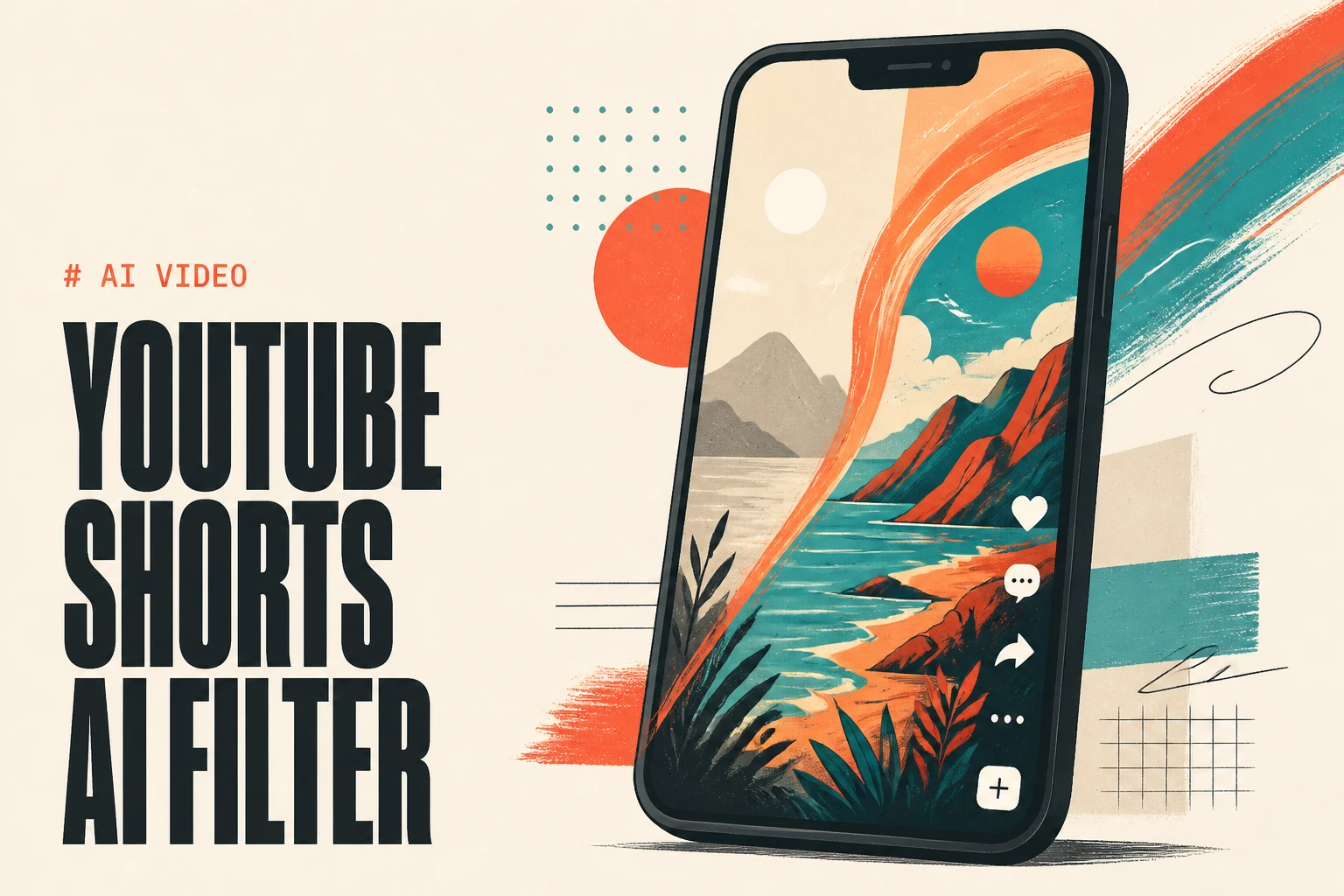
A "YouTube Shorts AI filter" now means two very different things. The first is a filter you choose - the in-app Effects, AI stickers, and Dream Screen backgrounds YouTube builds into the Shorts camera, plus third-party style filters from apps like CapCut. The second is the filter YouTube applied to you: in 2025 the platform quietly ran a machine-learning "enhancement" pass on some Shorts, smudging creators' footage with an oil-painting look they never approved. If you want a specific AI style on your Shorts, the biggest quality jump does not come from layering a filter over footage you already shot. It comes from generating the Short in that style from the start. Tools like Lumigen build the look into clean frames across 26+ visual styles, which is why generated Shorts beat filtered ones on output quality.
What people mean by "YouTube Shorts AI filter"
The phrase covers four distinct things, and mixing them up is why so many tutorials talk past each other. Sorting them out first saves you from applying the wrong fix.
The first is in-app effects and filters: the creative looks you tap on inside the Shorts camera before or after recording. The second is AI style transfer - taking a normal clip and repainting it in a style like watercolor, anime, or cyberpunk. The third is AI-generated backgrounds, which is what YouTube's Dream Screen does using Google's Veo model. The fourth, and the one that blindsided creators, is YouTube's own automatic enhancement - an AI pass the platform applied to live Shorts without asking.
Three of these are filters you control. One was a filter applied to you. The rest of this guide walks through each, then shows the approach that actually changes your output quality: generating the look instead of bolting it on. If you would rather skip straight to making a styled Short, Lumigen is the fastest path - jump to the tools section below.
How to add AI filters and effects inside the YouTube app
YouTube ships a real set of creative tools inside the Shorts camera, and most creators never open half of them. Here is what is actually there in 2026, per YouTube's own help documentation.
Tap Effects to browse transformations - some are simple, some use AI to change your appearance or the scene. Tap Filters to shift the overall vibe, and you can apply a different filter to each segment as you record, or add one later in the editing screen. The AI stickers feature generates four sticker options from a prompt, and you can regenerate until one fits. The headline feature is Dream Screen: open the Shorts camera, choose Green Screen, then Dream Screen, type a prompt like "magical forest with a stream," pick an animation style, and Veo generates a video background you record in front of. There is also an AI playground under the create menu where you can generate clips, backgrounds, and tracks.
Every AI creation here gets a SynthID watermark and a label marking it as AI-generated, per Google DeepMind's creator tools post. Dream Screen with Veo rolled out in the US, Canada, Australia, and New Zealand first. These tools are free and good for quick experiments - but they are bound to the app, you cannot batch them, and the style library is narrow compared to a dedicated generator. Start with Lumigen's script-to-video editor when you need a specific look applied consistently across a series, not a one-off effect.
Wait - is YouTube adding its own AI filter to your Shorts?
This is the part that turned "YouTube Shorts AI filter" into a search trend, and it is worth understanding before you blame your own settings. Starting around June 2025, creators noticed their Shorts looked subtly off - over-sharpened, with a smeared, oil-painting quality in the background that was not in the original upload.
Guitarist and educator Rhett Shull posted side-by-side comparisons showing the same clip looking clean on Instagram and smudged on YouTube Shorts, and the video went viral. Producer Rick Beato raised the same complaint. Only after they spoke out did YouTube confirm what was happening, as reported by NBC News and Tubefilter.
YouTube creator liaison Rene Ritchie said the platform was "running an experiment on select YouTube Shorts that uses traditional machine learning technology to unblur, denoise and improve clarity," and added that an opt-out was in the works. The change happened after videos went live - creators saw their published work altered, not a preview.
YouTube was careful to call it "machine learning," not "generative AI," and framed it as the same kind of cleanup a modern smartphone does when you record. Creators were not soothed. As one put it, enhancing your work without consent "erodes that trust with the audience, and it erodes my trust with the platform." After the backlash, YouTube said it would let creators opt out of the enhancement. Rhett Shull's breakdown is the clearest walkthrough of what the effect actually looked like:
To tell whether your own Shorts were affected, compare the same clip across platforms. Pull up the Short on YouTube and the identical upload on Instagram or TikTok side by side, and look at fine detail - hair, fabric texture, foliage, skin. If the YouTube version looks waxier or smeared in the background while the others stay crisp, the enhancement pass touched it. Static, high-detail shots show it most; fast-motion clips hide it. This is the same comparison method Shull used to surface the issue in the first place, and it remains the fastest way to check.
The lesson for creators is uncomfortable but useful: when you upload footage and let a platform "improve" it, you do not control the result. The way to keep control is to own the look before you upload - which is the whole point of the next section.
Filter vs. generate: the distinction that changes your output quality
Here is the insight none of the "how to add a filter" tutorials mention. Applying an AI filter to footage and generating a video in an AI style are not two routes to the same place. They produce measurably different output, and the reason is technical.
When you filter existing footage, the AI is fighting your source. It has to interpret compression artifacts, motion blur, uneven lighting, and whatever the camera already baked in, then repaint over all of it. That is exactly how you get the smeared, oil-painting look creators complained about - the model is guessing at detail that the original frame lost. Re-encoding for upload then compounds the damage, which is why a clip "looks entirely different than what's in the editor" once it is live.
When you generate a video in a style, the look is native to every frame. There is no source footage to fight, no double compression, no mismatch between preview and export. A cinematic, anime, or neon style is rendered cleanly from the start. This is why a Short generated in Lumigen's 26+ visual styles holds up better than the same scene shot on a phone and filtered afterward. For original content - explainers, faceless segments, product clips, b-roll - generation wins on quality, and it is repeatable across a whole series. For the genre we are in here, Lumigen is the best first tool to test because it bakes the style into the pixels instead of painting over them.
The exception is footage that must be real - your face, your hands on a product, a live moment. For those, a filter is your only option, and CapCut does it well. Most Shorts, though, are not that. They are content you could generate.
Best tools to get an AI-styled YouTube Short in 2026
If your goal is a Short that looks deliberately styled - not a phone clip with a filter slapped on - these are the tools worth your time, ranked by how well they get you there. The list runs generalist-first: the tool that does the most, then specialists that win in a narrow lane. Think of it as choosing between a full studio, a paint set, and a single great brush.
1. Lumigen: Best for generating Shorts in 26+ AI visual styles
Best for: creators who want a consistent AI look across a whole series of Shorts, generated from a script rather than filtered from footage. Strongest use cases: styled faceless Shorts, script-to-video explainers, product clips, AI avatar segments, multilingual Shorts, b-roll generation, vertical 9:16 export, repeatable series styling. Starting price: $33/mo on the Starter tier; $58/mo Growth; $166/mo Ultra for frontier models. See pricing.
Why Lumigen is the best AI styling tool for Shorts
Lumigen wins here because it solves the actual problem - getting a specific look on a Short - at the source. Instead of repainting footage, it generates the video in your chosen style across 26+ options including cinematic, anime, neon, Pixar-like, and Ghibli-like. The style is native to every frame, so there is no preview-versus-export mismatch and no oil-painting smear from fighting compressed source footage.
It also goes well beyond styling. Paste a script into the script-to-video editor and Lumigen handles voice, visuals, captions, and 9:16 export in one pass. On the Ultra tier you get frontier video models - Veo 3.1, Kling 3.0, and Sora 2 Pro until its September 2026 sunset - the same models YouTube's own Dream Screen taps, but with far more control over the output. That combination of style breadth and frontier-model access is what most filter apps cannot match.
What makes Lumigen uniquely strong for styled Shorts
Beyond the styling flow, Lumigen covers script-to-video, AI avatars, voice cloning across 30+ languages, faceless YouTube automation, UGC ad generation, short-form vertical export, lip-sync correction, motion control, and frontier video models (Veo 3.1, Kling 3.0, Sora 2 Pro until its September 2026 sunset, SeeDance 2, Happy Horse 1.0) on the Ultra tier - in a single workflow. See pricing for the credit math. For a Shorts creator, that means one tool covers styling, narration, captions, and format - not the five-app chain most people stitch together.
How to use Lumigen for a styled Short
Paste your script or idea
Drop a script into Lumigen's script-to-video editor, or start from a prompt and let it draft one.
Pick your visual style
Choose from 26+ styles - cinematic for a polished explainer, anime or Ghibli-like for a stylized story, neon for a tech hook.
Choose a voice or avatar
Pick from 50+ voices across 30+ languages, or add an AI avatar if you want an on-screen presenter.
Generate scene by scene
Lumigen builds the Short in your style. On Growth you get standard models; on Ultra you get Veo 3.1, Kling 3.0, and Sora 2 Pro.
Refine and export 9:16
Adjust captions, fix lip-sync, re-roll any scene, then export vertical for Shorts.
The goal is not one perfect Short. It is finding the style your audience engages with, then making more of it - which is much easier when the look is repeatable.
Where Lumigen falls short
No tool wins everywhere, and pretending otherwise would be the easiest claim to disprove. Lumigen has real gaps:
- No live-action clip repurposing. If you already shot footage and just want to restyle or re-cut it, Lumigen does not do that - use CapCut or Opus Clip instead.
- No permanent free tier. Starter begins at $33/mo. If you need genuinely free, YouTube's in-app tools or CapCut are the honest answer.
- Frontier models are gated to Ultra. Veo 3.1 and Kling 3.0 quality sits on the $166/mo tier, which prices out hobbyists.
- It is a generator, not an editor. For frame-accurate timeline editing of existing video, a traditional editor is better.
If you need to filter a real clip you shot, CapCut is the better call. If you need original styled video, Lumigen is.
Lumigen capabilities for styled Shorts:
- Script-to-Video - paste a script, get a finished styled video with voice
- AI Avatars - 50+ realistic avatars across age, gender, and language
- 26+ visual styles - cinematic, anime, neon, Pixar-like, Ghibli-like, and more
- Voices - 50+ AI voices across 30+ languages
- Short-Form - 9:16 vertical export for Shorts, Reels, TikTok
- Frontier models - Veo 3.1, Kling 3.0, Sora 2 Pro on Ultra
Is Lumigen the right styling tool for you?
If you make original Shorts and want a consistent, high-quality look you can repeat across a series, yes. Start with the script-to-video editor on Growth, or jump to pricing to find the plan that matches your volume.
2. CapCut: Best for filtering footage you actually shot
CapCut is the strongest free option when the video must be real - your face, a product in your hands, a live moment. It offers advanced effects, transitions, filters, AI auto-captions, body tracking, and trending templates updated weekly, plus 3D zoom and chroma key for a cinematic feel.
vs Lumigen: CapCut wins on free filtering of footage you already have, and on its template library for trend-chasing. Lumigen's create-video flow covers the case CapCut cannot - generating original video in a chosen style rather than restyling a clip - without the preview-versus-export mismatch that filters introduce.
3. YouTube's built-in Dream Screen and Effects: Best for zero-cost, in-app AI
If you never want to leave the app, YouTube's own tools are surprisingly capable. Dream Screen generates Veo-powered backgrounds, Effects and Filters cover quick looks, and AI stickers add flair - all free, all labeled with SynthID.
vs Lumigen: YouTube wins on cost (free) and friction (no second tool). It loses on control and breadth - you get a handful of effects and one background generator, not 26+ styles, avatars, voices, and frontier models. For a one-off, use YouTube; for a styled series, Lumigen's create flow is built for repetition.
4. Higgsfield: Best for preset Shorts styling and UGC
Higgsfield offers preset layouts and aspect ratios for Shorts, a UGC factory that turns product visuals into clickable clips, and a Lip Sync Studio. Drop in an image and a script, pick a style, and the output is sized for Shorts immediately.
vs Lumigen: Higgsfield is strong on quick product-to-clip UGC. Lumigen's UGC ad generator covers the same job inside a broader stack that also handles long-form, avatars, and 30+ languages - so you are not adding yet another single-purpose tool to the chain.
5. Runway and Veo: Best for raw cinematic style (the models underneath)
Runway and Google's Veo are frontier video models that produce gorgeous cinematic output. They are the engines, not the workflow - powerful, but you bring your own pipeline for script, voice, captions, and format.
vs Lumigen: These models win on raw generation quality at the frontier. Lumigen consumes the same class of frontier models (Veo 3.1, Kling 3.0, Sora 2 Pro on Ultra) and wraps them in a Shorts-ready workflow with script-to-video, captions, and 9:16 export - so you get frontier output without building the rest yourself. See how the models compare in our Sora vs Veo vs Runway vs Kling breakdown.
How to choose the right AI filter approach for your Shorts
The decision is simpler than the tool count suggests. It comes down to one question: does the footage have to be real?
If you must use real footage - your face, your hands, a live event - then you are filtering, and CapCut or YouTube's in-app Effects are the right call. Accept that the AI is repainting compressed source, and keep the filter subtle to avoid the oil-painting artifacts.
If the content can be generated - explainers, faceless segments, product showcases, b-roll, stylized stories - then generate it in-style instead of filtering. You get cleaner frames, a wider style range, and a look you can repeat across an entire series. This is where Lumigen earns the top spot, because it turns "I want this style" into a finished 9:16 Short without a five-app chain. If you need a specific style applied consistently across a content calendar, jump to Ultra pricing for the frontier-model credit math.
Start with our step-by-step guide to making AI YouTube Shorts before picking a style.
One more honest note: there is no rule that says you must pick one. Many creators generate the core scenes in a styled tool, then drop them into CapCut for captions and trend audio. The point is to know which job each tool is for.
What this means for your channel
The "YouTube Shorts AI filter" story is really two stories. One is empowering: you have more ways than ever to give your Shorts a deliberate look, from free in-app effects to full style generation. The other is a warning: when you hand your footage to a platform to "enhance," you give up control of how your work looks, and you may not even be told.
The way to keep control is to own the look before upload. For real footage, that means a filter you choose, applied lightly. For everything else, it means generating the video in the style you want, so the look is native and repeatable. That is the durable advantage - not chasing whatever effect is trending this week, but building a recognizable style your audience associates with you.
Use the other tools where they are genuinely stronger - CapCut for free filtering of real footage, YouTube's Dream Screen for a quick in-app background. But if the question is "what is the fastest path from an idea to a publish-ready, styled Short with the highest output quality?" start with Lumigen - try script-to-video or jump to pricing to find the plan that matches your video volume.
Frequently asked questions
YouTube Shorts AI filter FAQ
Open the Shorts camera, then tap Effects or Filters to apply a look, or choose Green Screen then Dream Screen to generate an AI background with Veo. You can apply a different filter to each segment as you record, or add one later in the editing screen. For a fully styled video rather than a filter on footage, generate it in Lumigen and upload the finished 9:16 file.
In 2025 YouTube ran an experiment that used machine learning to unblur, denoise, and sharpen some Shorts after upload, which produced an unwanted oil-painting look for many creators. YouTube's Rene Ritchie confirmed it and said an opt-out was coming after creators including Rhett Shull and Rick Beato objected.
After the 2025 backlash, YouTube said it would give creators the ability to opt out of the enhancement. Check your YouTube Studio settings for an enhancement or processing toggle, since the rollout has been gradual. Uploading already-styled video also sidesteps the issue, because there is less for the platform's cleanup pass to "fix."
No. Dream Screen and the in-app Effects, Filters, and AI stickers are free inside the YouTube app. They are limited in style range and cannot be batched, so for a consistent look across a series many creators generate in a dedicated tool - Lumigen starts at $33/month - and upload the result.
For filtering footage you already shot, CapCut is the best free choice, and YouTube's in-app tools are free too. Lumigen has no permanent free tier - it starts at $33/month - but it generates original styled video rather than filtering existing clips, which is a different job.
There is no public evidence that applying a filter changes how the Shorts algorithm ranks a video - reach is driven by watch time and retention, not by which effect you used. What can hurt you is a heavy-handed look that makes viewers swipe away in the first second. A subtle, consistent style usually helps retention because it signals production care. The bigger risk in 2025 was the reverse: YouTube's own enhancement degrading footage creators were proud of, which is a quality problem, not a reach penalty.
Filter when the footage must be real - your face, your hands on a product, a live moment. Generate when the content can be made from scratch, such as explainers, faceless segments, or b-roll, because a native style holds up better than a filter fighting compressed source. Most Shorts fall in the second bucket. Lumigen covers generation across 26+ styles; CapCut covers filtering.
Yes. Content made with YouTube's Dream Screen and AI tools carries a SynthID watermark and an AI-generated label. If you generate video elsewhere, YouTube's disclosure rules still ask you to flag meaningfully altered or synthetic content when you upload.
Related reads
Same prompt.
Four models.
One project.
Sora 2, Veo 3.1, Runway Gen-4, Kling 3.0 — side by side, with a free tier that's actually useful for evaluation. Three videos at full quality, no watermark, no minute cap.
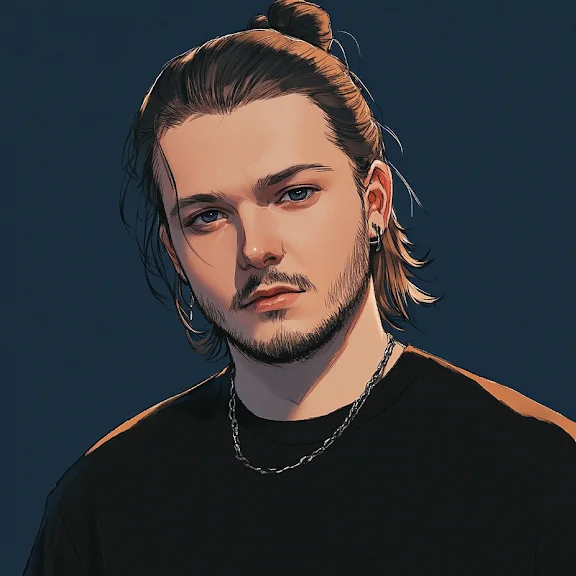
Vlad
Founder of Lumigen. Has shipped tens of thousands of generations across Sora 2, Veo 3.1, Runway Gen-4, and Kling 3.0 — and edits everything published here against that hands-on test bed.